Responsable: Jose Manuel Alegre Cuenca. Este sitio almacena en el dispositivo del Usuario únicamente lo estrictamente necesario para la prestación del servicio —sesión, academia y tema visual—, que está exento de consentimiento. Se solicita el consentimiento para dos finalidades adicionales: contenidos alojados por terceros (vídeos, presentaciones y entornos de programación incorporados a las lecciones) y analítica de uso, que se realiza con Google Analytics y sólo si el Usuario la autoriza. Este sitio no emplea publicidad ni seguimiento entre sitios web. Autorizar los contenidos de terceros supone que el proveedor reciba la dirección IP del Usuario y la trate en EE. UU.. En el caso de Gamma y CodeSandbox, sin decisión de adecuación y con los riesgos que se detallan en «Configurar» y en la política de cookies. Consultar la política de cookies.
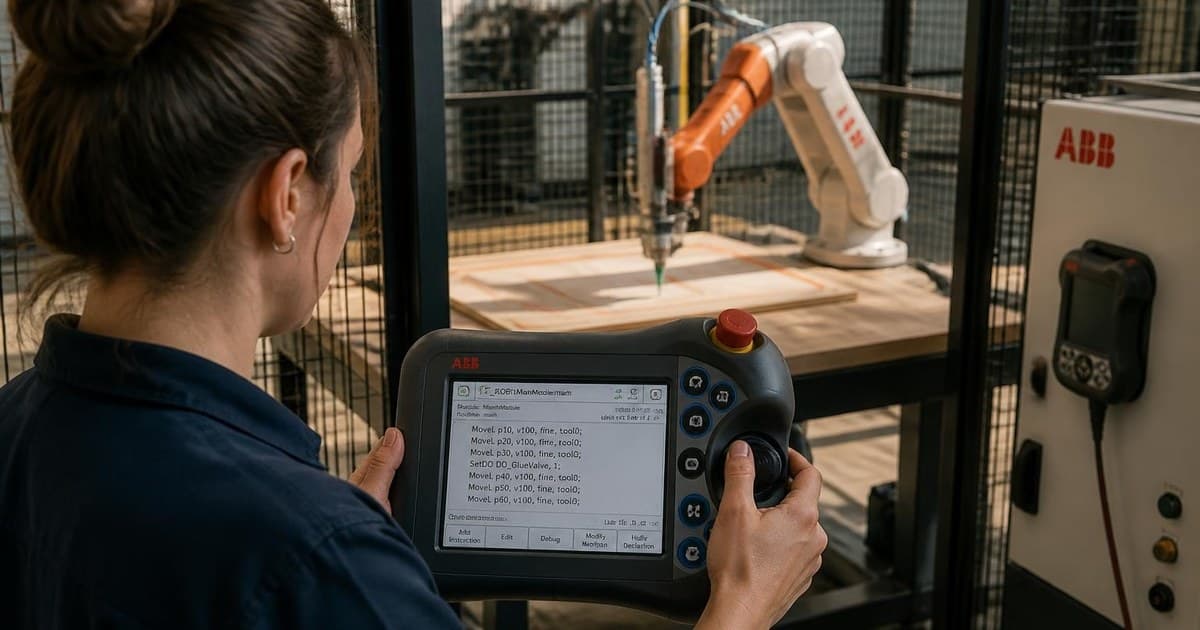
Master ABB RobotStudio end-to-end: build virtual cells, boot a virtual controller, jog, define tools and WorkObjects, program paths, synchronize to RAPID, and run full simulations — ready for the real robot.
Déjanos tus datos y te enviamos las instrucciones de pago por transferencia y la ficha del curso. Confirmamos tu matrícula en cuanto recibimos el pago.
What RobotStudio is, when to use offline programming, installing it, and a guided tour of the user interface.
What Is RobotStudio?8 min
When (and Why) to Use Offline Programming10 min
Installing RobotStudio10 min
System Requirements and Licensing8 min
First Launch — UI Tour12 min
02Your First Station58 min
Create a project, add a robot from the ABB Library, navigate the 3D viewport, and save your station confidently.
Creating a New Project10 min
Adding a Robot from the ABB Library10 min
Navigating the 3D Viewport10 min
Saving and Reopening Projects8 min
Lab: Build CeldaEjemplo20 min
03The Virtual Controller1 h 14 min
Boot a virtual IRC5 controller from your layout, understand RobotWare versions, and troubleshoot startup.
What Is a Virtual Controller10 min
From Layout Wizard, Step by Step12 min
RobotWare Versions Explained10 min
Controller Status and the Event Log10 min
Troubleshooting a Stuck Controller12 min
Lab: Boot Your First Virtual Controller20 min
04Jogging the Virtual Robot1 h 18 min
Move the robot manually: Joint, Linear and Move & Rotate modes. Master the reference frames and know when to use each.
Jogging Modes — Overview8 min
Joint Jogging10 min
Linear Jogging (Cartesian)10 min
Move & Rotate Gizmo10 min
Reference Frames: World vs Tool vs WorkObject12 min
Jump to Home and Resetting the Pose8 min
Lab: Manual Jogging Challenge20 min
05Tools and Environment Objects1 h 39 min
Import tools, attach them to the flange, understand tooldata and TCP, import workpieces from CAD, and verify reach with the work envelope.
Importing a Tool from the Library10 min
Attaching Tools to the Flange10 min
Understanding TCP and Tooldata12 min
Importing Geometry (STEP, SAT, IGES)10 min
Placing Objects in the Cell10 min
Visualizing the Work Envelope10 min
Reach Analysis and Singularities12 min
Lab: Gripper and Table25 min
06Work Objects (WorkObjects)1 h 22 min
Define coordinate frames attached to the workpiece so your paths survive part shifts. User frame vs object frame, 3-point method, snapping.
Why WorkObjects Matter10 min
User Frame vs Object Frame10 min
The 3-Point Method Step by Step12 min
Snapping Tools for Precision8 min
Teaching Targets with a WorkObject10 min
Updating the WorkObject When Parts Shift10 min
Lab: Define a WorkObject on a Workpiece22 min
07Path Programming1 h 45 min
Create paths, set the Instruction Template, teach targets with MoveJ/MoveL/MoveC and verify with Move Along Path.
The Paths & Targets Panel10 min
Creating a New Path8 min
Instruction Templates10 min
MoveJ vs MoveL vs MoveC12 min
Speed and Zone Parameters10 min
Teaching Points with Add Instruction12 min
Reordering and Editing Instructions8 min
Move Along Path — Quick Simulation10 min
Lab: Rectangle Path on a Workpiece25 min
08RAPID Sync and Simulation1 h 43 min
Turn graphical paths into RAPID code, link to main, run the virtual controller and debug with program/robot pointers.
What Is Synchronize to RAPID10 min
Performing a Sync8 min
Reading the Generated RAPID Code12 min
Linking Your Path to main10 min
Running the Program in the Virtual Controller10 min
Program Pointer and Robot Pointer10 min
Pause, Step and Reset10 min
Sync to Station — The Reverse Direction8 min
Lab: Full Simulation End-to-End25 min
09Best Practices and Advanced Topics1 h 28 min
Production-grade habits: naming, modular RAPID, speed/zone optimization, singularities, Pack & Go, and the virtual-to-real transfer.
Naming Conventions and Project Structure10 min
Modular RAPID with Routines12 min
Zones and Speeds Optimization12 min
Singularities and Reach Tips12 min
Version Control and Pack & Go10 min
Matching RobotWare with the Real Robot10 min
From Virtual to Real Robot12 min
Online Monitoring and Remote Connections10 min
10Capstone: Pick-and-Place Project2 h 17 min
A complete project from empty station to running simulation: set up the cell, attach a gripper, calibrate a WorkObject, program the cycle, and simulate end-to-end.
Brief and Requirements12 min
Part 1 — Station Setup25 min
Part 2 — Tool and WorkObject25 min
Part 3 — Path Programming30 min
Part 4 — RAPID and Simulation30 min
Review and Packaging15 min
Prueba la primera lección
Así se ve una lección por dentro. Los ejercicios interactivos y el seguimiento de tu progreso se activan al matricularte.
RobotStudio sits at the heart of ABB's robotics ecosystem. On one side you have the real robots (IRB 120, IRB 1200, IRB 2600, IRB 6700 families, and many more) with their physical IRC5 or OmniCore controllers. On the other side you have engineers who need to design cells, estimate cycle times, train operators, and write programs — often before the hardware is even delivered. RobotStudio is the bridge between both worlds.
Este vídeo se aloja en YouTube
La carga de este contenido requiere consentimiento previo: al autorizarla, YouTube recibirá la dirección IP del Usuario y almacenará información en su dispositivo.
Google LLC trata los datos en EE. UU. al amparo de la decisión de adecuación de la Comisión Europea de 10 de julio de 2023 (art. 45 del RGPD), a la que está certificada. Política de privacidad de YouTube.
What makes RobotStudio different from generic 3D CAD is the Virtual Controller. When you boot a station, RobotStudio launches the exact same RobotWare (the controller operating system) that ships inside the physical IRC5. This is why simulations are accurate: motion planning, interpolation, singularity handling, and RAPID execution all behave like the real thing.
Role
What they do in RobotStudio
Integrator
Designs the full cell (robot + tools + conveyors + fixtures) and validates reach
Programmer
Writes RAPID, teaches targets, tunes paths, estimates cycle time
Trainer / Student
Learns the Virtual FlexPendant, jogging, and programming with zero safety risk
Maintenance
Rehearses interventions and tests backups before restoring them on the real cell
The "Station" concept
Everything in RobotStudio lives inside a station. A station is a single file on disk — extension .rsstn — that contains the full 3D description of a robot cell.
A station typically holds:
One or more robots (mechanisms) from the ABB Library
One or more Virtual Controllers with their configuration and RobotWare version
Tools (grippers, welding torches, dispensers) attached to robot flanges
Work objects — coordinate frames tied to fixtures, tables, or parts
Paths, targets, and RAPID modules produced by the programmer
Imported CAD geometry (STEP, SAT, IGES) for the environment
Think of .rsstn as a blueprint file for a workcell: open it on any computer with RobotStudio installed and you see the same robots in the same positions, with the same programs.
Station vs Solution vs Backup
Three names often confuse beginners. Here is the difference:
Term
What it is
Extension
Station
The 3D scene file — robots, tools, CAD, paths
.rsstn
Solution
A folder containing one or more stations, controllers, and shared libraries
(folder)
Backup
A snapshot of a controller’s state (RAPID + system params + I/O)
(folder)
How RobotStudio fits in the ABB stack
RobotStudio is not a standalone island. It talks to:
RobotWare — the controller OS. Each station pins a specific RobotWare version (e.g. 6.15 for IRC5, 7.x for OmniCore).
RAPID — ABB's robot programming language. You write, compile, and debug RAPID modules inside RobotStudio's editor.
RobotApps / PowerPacs — optional add-ons for specific processes (Arc Welding, Machining, Palletizing, MachineTending).
The real robot — once validated virtually, you connect RobotStudio to a real controller over Ethernet and push your RAPID modules with RAPID Sync.
This "design virtual, deploy real" loop is called offline programming (OLP), and it is RobotStudio's main reason to exist — which is exactly what the next subsection explores.

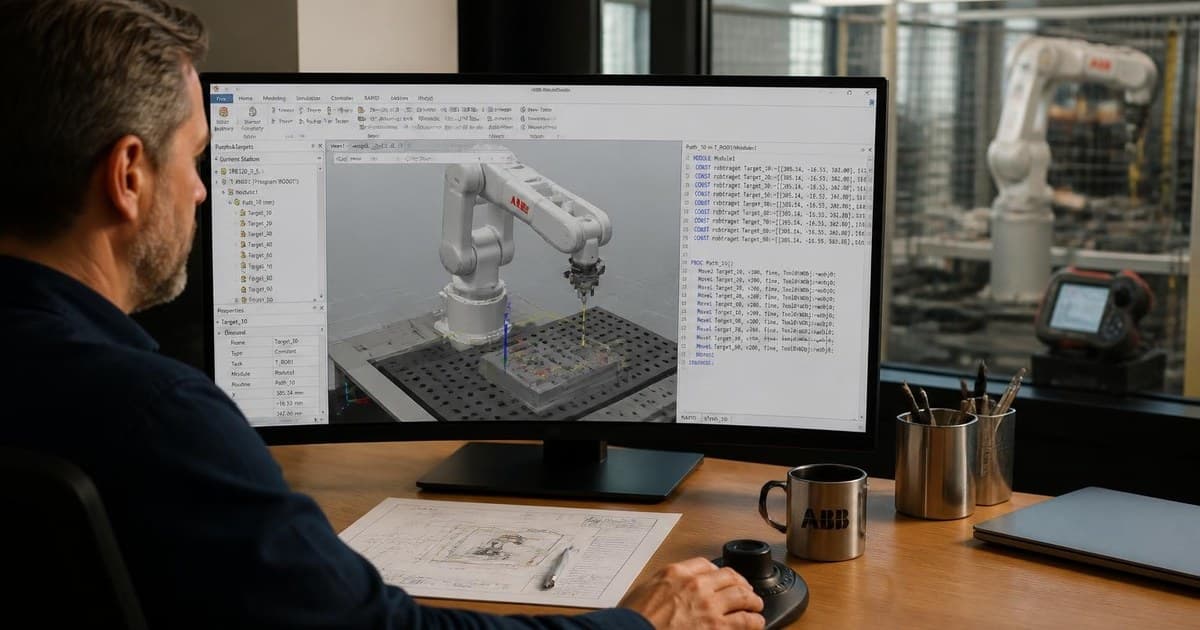 Imagen generada con IA